Which monitor for your Mac mini? Sharp, smooth or cheap, and screens you can carry
Published 24 October 2026 · prices below are checked every week
The Mac mini comes without a screen, so the monitor is half of what you see every day. Good news: a great one costs less than you think, and the Mac mini can drive up to three. Here is what makes text look crisp on a Mac, which screen fits which budget, and how to take the whole thing with you.
- No screen in the box
- HDMI and USB-C built in
- Up to 3 screens
- 24-inch screens on a budget
What the M6 Mac mini can drive
screens at once, through HDMI and the Thunderbolt ports
Appleon a single screen, or 5K at 120 Hz, or 4K at 165 Hz
Applepixels per inch: the sharpness macOS is designed for
27-inch 5Ksmooth scrolling, like the screen on a MacBook Pro
On many 4K screensTip from Apple: if you use more than one screen, plug in the one with the highest resolution first.
The secret to sharp text on a Mac
macOS looks its crispest at about 110 or about 220 pixels per inch. Screens in between still work well; text is simply scaled a little. Here is how the common sizes compare:
Full HD on 24 inches, about 92 per inch. Fine for everyday work: we use a 24-inch screen with a Mac every day without problems. Text is a touch softer than on a 4K screen, which you only notice side by side.
2560 × 1440 on 27 inches, about 109 per inch: one of macOS’s two sweet spots, and plenty of space for two windows side by side.
About 163 per inch: clearly sharper. macOS scales it slightly, and most people never notice.
About 218 per inch: as crisp as a MacBook screen, with no scaling at all.
Skip one combination: QHD stretched to 32 inches. At that size the text starts to look coarse. For 32 inches, go 4K.
Sharp or smooth?
Sharp: 5K at 60 Hz
- Retina-crisp text and photos
- Best for writing, design and photo work
- Usually the dearer choice
Smooth: 4K at 120 Hz
- Silky scrolling and cursor
- Best for video timelines and games
- Still plenty sharp
Video makers sometimes run one of each: the 5K screen to judge the picture, the 120 Hz screen for the editing timeline.
Cheap and good: 24-inch screens
The Mac mini has an HDMI socket, so even the cheapest screen plugs straight in, with no adapter. These are from our weekly price checks:
The lowest cost
A 24-inch Full HD screen with a smooth 144 Hz picture. The stand tilts but doesn’t go up and down.
Get: Dell SE2426HWith speakers and a better stand
The Mac mini’s own speaker is small. This one adds speakers and a stand that moves up and down to eye level.
Get: Dell S2425HSMOne cable for a MacBook too
A USB-C screen that charges a laptop at up to 100 W and adds USB ports and a network socket. Worth it if a MacBook shares the desk.
Get: Dell P2426HEBigger for films
27 inches of Full HD for not much money. Great for watching, a little soft for reading up close.
Get: Dell SE2726HOur picks for most people
The sweet spot: 27-inch QHD
Sharp, roomy text at macOS’s 109-per-inch sweet spot, a fast 144 Hz picture, a stand that moves up and down, and a USB-C socket that can also charge a MacBook.
Get: Dell S2725DCSharper: 27-inch 4K at 120 Hz
Crisp text and a smooth 120 Hz picture through HDMI. For a desktop Mac you don’t need USB-C. Compare the prices: the 4K model is sometimes no dearer than QHD.
Get: Dell S2725QS4K with a hub and speakers
The same sharp panel, plus speakers, USB ports and one-cable USB-C. Handy if you also plug in a MacBook or want cables off the desk.
Get: Dell S2725QCRetina-sharp: 27-inch 5K
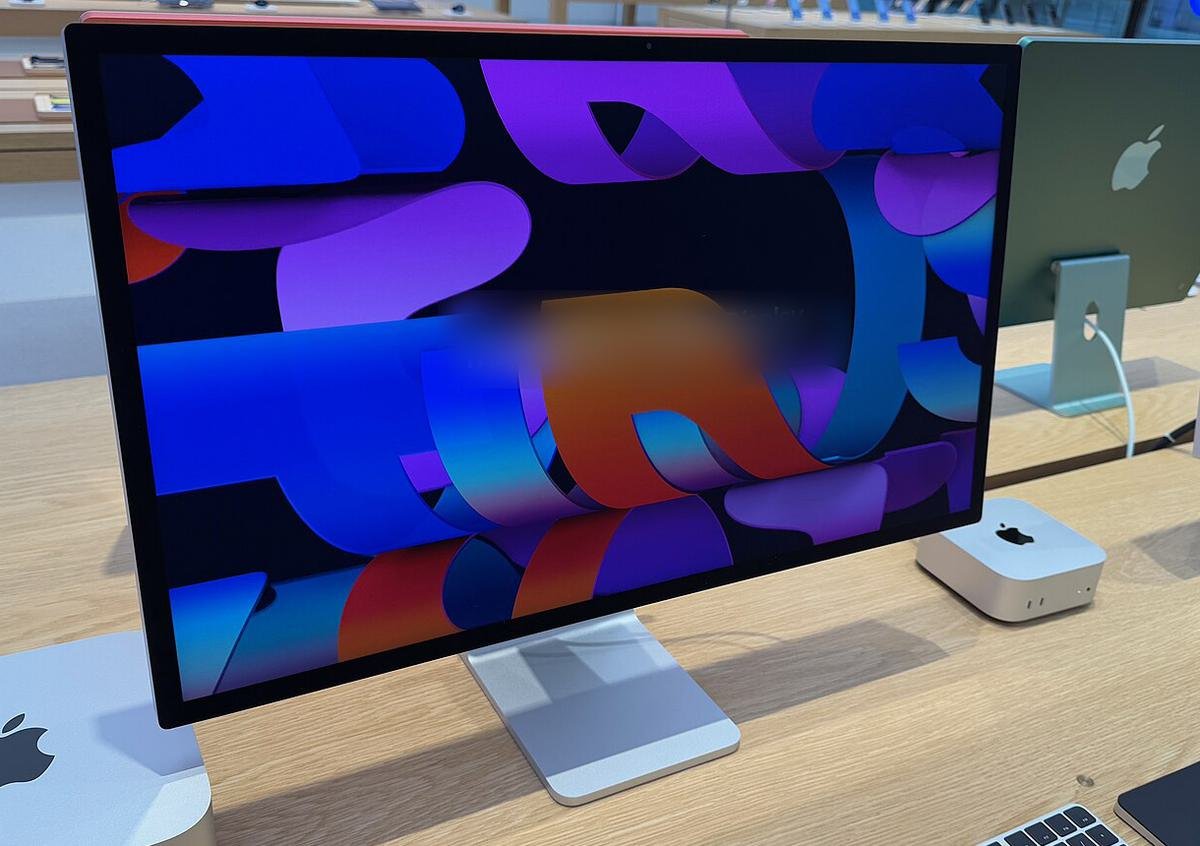
Apple’s Studio Display (from £1,499) adds a camera, six speakers and Thunderbolt 5, which matters because the Mac mini has no camera. 5K screens from BenQ and ASUS cost less but drop the camera and speakers. We don’t track these prices yet.
Screens you can carry
The Mac mini weighs 0.67 kg, so some owners take it travelling. You still need a power socket for it, and a screen:
A portable monitor
15 to 16 inches, slim enough for a laptop sleeve, often working from a single USB-C cable for picture and power. Budget ones are Full HD; dearer ones add a brighter, sharper or touch screen and a magnetic stand.
XR glasses
The wild option: glasses on one USB-C cable that show a huge virtual screen only you can see. Great for a few hours in a café or on a train, not for eight hours a day.
Your MacBook as the screen
Already own a MacBook? Use it as a window into the Mac mini with Screen Sharing. See how →
Pack the rest
A folding keyboard, a small mouse or trackpad, and the Mac mini’s power cable. Its power button is underneath, so you’ll find it by feel.
What else you need
- A camera for video callsThe Mac mini has none. Your iPhone works as a high-quality webcam with Continuity Camera, wirelessly or on a cable.
- Speakers or headphonesThe built-in speaker is fine for alerts, not for music or films. A screen with speakers saves desk space.
- A keyboard and mouseNeither comes in the box.
- The right cableThe box holds only the power cable. Most monitors include an HDMI or USB-C cable; check before you order.
- A VESA mount, if you like it tidyBrackets hold the Mac mini behind the screen, so the desk looks like an all-in-one.
4 mistakes to skip
- Paying for laptop charging you won’t use65 W or 100 W USB-C charging only helps if a laptop shares the screen. For a Mac mini on its own, HDMI is enough.
- QHD on a 32-inch screenText looks coarse at that size. Choose 27-inch QHD, or 4K for 32 inches.
- Thinking “5K2K” means 5KUltrawide screens sold as 5K2K are as tall as a 4K screen, just wider. Lovely for timelines, but not Retina-sharp.
- Forgetting the cameraMany people notice on their first video call. Plan for your iPhone or a webcam.
Our verdict
On a budget: a 24-inch Full HD screen works well with a Mac mini, and costs less than a pair of good headphones.
Best value: 27-inch QHD for space, or 27-inch 4K at 120 Hz for sharper text. Money no object: a 5K screen, and the Studio Display if you want its camera and speakers built in.
Still choosing the Mac mini itself? Read our Mac mini M6 guide →
Quick questions
Do I need a USB-C or Thunderbolt monitor for a Mac mini?
No. The Mac mini has an HDMI socket, so any HDMI monitor works. USB-C helps when a MacBook shares the screen, or when you want the monitor’s USB ports to work as a hub.
Can I use two or three monitors?
Yes, up to three on the M6 Mac mini. Only one can use the HDMI socket; the others plug into the Thunderbolt ports. The exact resolutions depend on the mix, so plug in the sharpest screen first.
Will a gaming monitor work?
Yes. High refresh rates work on a Mac, and they are great if a games console or PC shares the screen. Colours may be less accurate than on a work monitor.
Text looks too small on my new screen. What do I do?
Open System Settings › Displays and pick an option nearer “Larger Text”. On a 27-inch 4K screen, many people like the 2560 × 1440 setting: more space, still easy to read.